Category: Guides & Tutorials

Step-by-step instructions for safe and responsible navigation and research.

  • How to Access a Onion Site

    How to Access a Onion Site

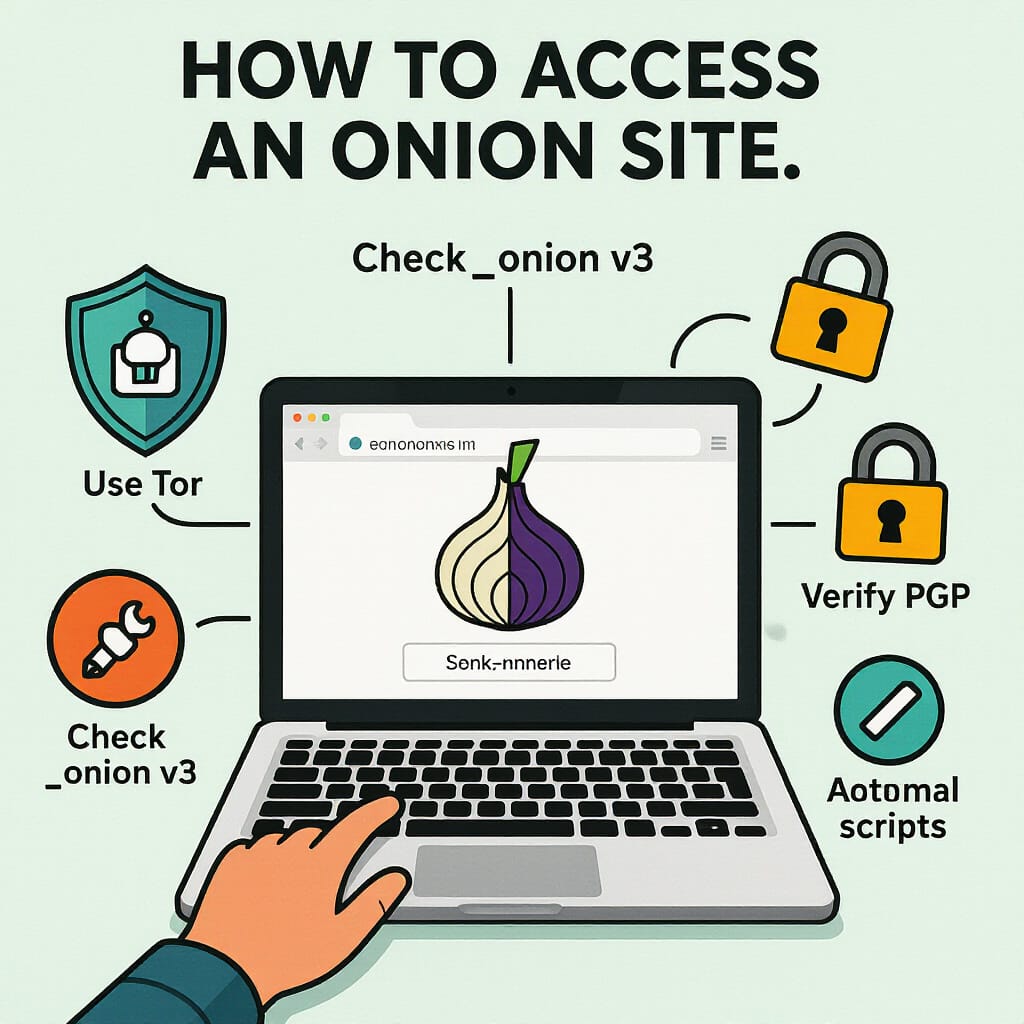
    To access an onion site you don’t need to be a hacker, but you do need to understand what you’re doing and why. Below is a detailed walkthrough, focused on privacy, legality and good OPSEC (operational security).


    What exactly is a .onion site?

    Before opening anything, it’s vital to understand what you’re connecting to.

    “.onion” is a special-use domain (like .local) that only works through the Tor network. If you paste http://example.onion into Chrome or Firefox directly, it simply won’t resolve. Instead of traditional DNS, Tor uses hidden services: the address itself (the long random-looking string) is derived cryptographically from the site’s keys. Onion sites are not necessarily “illegal”; they’re just not part of the normal DNS system and are reachable only via Tor.

    Think of it as a parallel internet where:

    • Traffic is routed through several relays
    • Both you and the server can remain anonymous (if configured correctly)
    • Many sites are very temporary: they appear and disappear frequently

    The only tool you really need: Tor Browser

    Why Tor Browser and not “Tor + Chrome/Edge/etc.”?

    You’ll sometimes see tutorials suggesting:

    “Install Tor, then configure your normal browser to use the Tor SOCKS proxy.”

    Technically it works, but it’s a bad idea. Modern browsers leak a lot of identifying information (fingerprints, cache, extensions, WebRTC, fonts, etc.). Tor Browser is hardened to reduce fingerprinting and to avoid leaks that can deanonymize you.

    So:

    If you want to access .onion sites, use Tor Browser. Full stop.

    Downloading Tor Browser (safely)

    1. Go to the official site from your normal browser:
      Search “Tor Browser download” and verify the domain is from the Tor Project (torproject.org).
    2. Choose your operating system:
      • Windows
      • macOS
      • Linux
      • Android (via the official Tor Browser for Android)
    3. Download the installer and verify:
      • At minimum, check the file name and approximate size match what the Tor website says.
      • For advanced users, the Tor Project provides signatures (GPG) to verify the file, but that’s optional if you’re just starting.
    4. Run the installer as you would with any other app.

    First launch: basic configuration

    When you open Tor Browser for the first time:

    1. You’ll see a welcome screen asking if you want to Connect or configure connection settings.
    2. In most countries, you can simply click Connect.
    3. Tor Browser will:
      • Establish a connection to the Tor network.
      • Build a circuit of several relays.
      • Open a modified Firefox window with some custom settings for privacy.

    If your country censors Tor:

    • You may need to use bridges (special Tor entry relays that are not publicly listed).
    • From the start screen, click something like Configure or Tor Network Settings and then:
      • Enable bridges.
      • Either choose built-in bridges or request custom ones (from the Tor Project website or email).
    • This is beyond a basic user’s need, but good to know it exists.

    How to open a .onion URL step by step

    Let’s say you have a .onion URL, for example:

    http://exampleonionabcdefghijklmnopq.onion/

    Check the URL itself

    Before you paste it anywhere:

    • Typo-sensitive: Onion addresses are long and often similar to each other. A single character difference can send you to a completely different site.
    • Do not rely on “looks legit”. The address itself is the identity; there’s no certificate authority or classic brand recognition.

    If you copied it from a directory, wiki, or forum:

    • Prefer recent, well-maintained directories.
    • Be skeptical of “mirrors” that appear in shady lists with no reputation.

    Paste into Tor Browser

    Once Tor Browser is connected:

    1. In the Tor Browser’s address bar, paste the .onion address.
    2. Press Enter.
    3. Tor will:
      • Route your traffic through multiple relays.
      • Reach the hidden service (the onion site).
    4. The site will load—often more slowly than clearnet sites—because of the extra routing.

    Security & privacy settings you should tweak

    Tor Browser includes a “Security Level” control that adjusts features like JavaScript, media, and fonts, because they can be used to fingerprint or exploit you.

    Security level

    1. Click the shield icon or open Settings → Privacy & Security → Security Level (exact wording may vary slightly by version).
    2. You’ll see something like:
      • Standard – Most sites work like a regular browser. Some protections, but more attack surface.
      • Safer – Disables some JavaScript and features on non-HTTPS sites, blocks many risky elements.
      • Safest – Most scripts and media are disabled, many websites partially break, but you’re harder to fingerprint and exploit.

    Recommendation for onion sites:

    • At least Safer.
    • For very sensitive browsing, use Safest, and accept that some pages will partially break.

    Don’t change the window size (seriously)

    Tor Browser:

    • By default uses specific window sizes to reduce fingerprinting.
    • If you resize it manually to something odd, you make your fingerprint more unique.

    Try not to:

    • Maximize to full-screen on large monitors.
    • Drag to weird sizes.
      Just use the default sizing Tor gives you.

    Don’t install extensions

    Resist the temptation to add uBlock, password managers, etc.
    Each extension:

    • Adds a unique fingerprint.
    • Might leak data or conflict with Tor’s protections.

    Tor Browser already includes basic tracking protections and a hardened configuration. For .onion browsing, less is more.


    Finding onion sites (safely and realistically)

    Onion sites are not indexed by Google or traditional search engines in the usual way. Instead, users typically discover them through curated directories, trusted wikis, and communities focused on privacy and anonymity. Below are reliable and well-maintained entry points you can use.

    Trusted directories and wikis

    These sites compile onion links, categorize them, and verify which ones are online:

    • RealDeepWeb.nethttps://realdeepweb.net/
      A professionally maintained directory of onion services featuring guides, security tips, and regularly updated lists of hidden sites. This is also where this article is published, making it a central resource for newcomers.
    • InTheHiddenWiki.nethttps://inthehiddenwiki.net/
      One of the most widely referenced Hidden Wiki mirrors. It offers categorized lists of marketplaces, forums, privacy tools, and whistleblowing platforms. The site is frequently updated and highlights both new and offline links.
    • Torch-verified Onion Directory (Onion Scanner Mirror)
      http://scan5upinzqaefpcqliewzyds7byrn2aqimm6yvhfjbrnvauum3wosyd.onion/
      A native onion-only directory accessible exclusively through Tor. It provides categorized onion links and is designed for users who prefer to fetch resources entirely inside the Tor network without contacting the clearnet.

    These directories are far more useful than random lists posted on forums or outdated wikis circulating on social media.

    Forums and community-driven lists

    Some privacy-oriented forums, both on the clearnet and inside Tor, publish curated lists of onion services. These tend to include user reviews, uptime reports, and warnings about scams. However, their reliability varies, so cross-checking with trusted directories such as RealDeepWeb or InTheHiddenWiki is recommended.

    Onion search engines

    Several search engines operate entirely inside the Tor network, indexing onion pages much like Google does for the clearnet. While not perfect, they are helpful for discovering new services or verifying whether an onion site is still reachable.

    Practical guidelines

    • Prefer directories with visible update dates. If a link list hasn’t been updated for months, expect a high rate of dead links.
    • Expect downtime. Onion sites frequently disappear, move to new addresses, or rotate keys.
    • Avoid “unverified” mirrors. Fake clones are common and often used for phishing.

    Using well-curated resources like RealDeepWeb.net, Inthediddenwiki.net, and the onion-only mirror scan5upinz…onion greatly reduces the risk of landing on malicious or outdated onion services.


    Step-by-step summary checklist

    If you just want a quick checklist to follow:

    1. Download Tor Browser from the official Tor Project website.
    2. Install it and run it.
    3. Click Connect to join the Tor network.
    4. Set Security Level to at least Safer.
    5. Copy your target .onion URL from a trustworthy source.
    6. Paste the URL into Tor Browser’s address bar.
    7. Wait for the site to load (it may be slower than normal sites).
    8. While browsing:
      • Don’t log in with your real identity.
      • Don’t reveal personal information.
      • Be cautious about downloading files.
    9. Keep Tor Browser updated regularly.
    10. Respect local laws and use Tor for legitimate, privacy-oriented purposes.

    Disclaimer

    Accessing the Tor network and visiting .onion sites is not illegal by itself, but some services hosted on the dark web may offer or promote activities that are prohibited in many countries. This guide is provided strictly for educational and informational purposes.
    You are fully responsible for:

    • Complying with the laws of your jurisdiction
    • Avoiding illegal content or activities
    • Protecting your privacy and security while browsing

    Nothing in this article encourages, supports, or endorses the use of Tor or .onion sites for unlawful purposes.
    Use these tools responsibly and ethically.

  • Safety Tips for First-Timers on the Deep Web

    Safety Tips for First-Timers on the Deep Web

    By [crypto]
    Real Deep web Contributor

    The deep web is less a place than a set of alternate routes—side streets that search engines don’t map and censors struggle to police. It can be a refuge for whistleblowers and readers behind firewalls, but it also hosts scams, malware and myths that prey on the curious. If you’re stepping in for the first time, treat it like a hazardous worksite: slow, deliberate, and with the right protective gear. Here’s a plain-spoken field guide.

    Begin with a threat model, not a download

    Start not with a download, but with a reckoning. Before you touch a browser, name what you’re protecting and who might be interested in taking it from you. Maybe it’s your identity, your location at a given hour, the names in your address book, a draft you’re not ready to show the world. Maybe your adversary is as small as a nosy roommate or as vast as a state security service. Put that on paper. Be honest about the price of failure—embarrassment, a reprimand at work, a source burned, a knock at the door—and about the price of safety, too: slower connections, fewer conveniences, a refusal to click what everyone else clicks. Real privacy is not a free add-on; it is a trade.

    Once you have those stakes in focus, your choices start to sort themselves. A casual reader, merely slipping past a clumsy filter, can accept Tor Browser’s defaults on a well-patched computer and resist the urge to log in anywhere that knows their real name. Someone doing sensitive research may need a live-boot system that leaves little trace, fresh identities that share nothing with everyday life, and the discipline to treat every download as hostile until proven otherwise. A reporter or activist at real risk should plan for a clean machine that never touches personal accounts, for conversations whose authenticity is proved by fingerprints rather than avatars, for the humility to walk away when a site demands a plugin or a shortcut you don’t fully understand.

    It helps to map the powers of the people on the other side of the wire. A partner can shoulder-surf; an employer can log DNS queries and push software to your laptop; an internet provider can see timing and destinations even when it can’t read the content; a government can pair legal pressure with deep-packet inspection and targeted malware. Each tier narrows your options and raises the cost of error. And most leaks aren’t dramatic intrusions; they’re self-inflicted: the old username you reuse out of habit, the photo with a time zone in its metadata, the moment you open your real-name email “just for a second” in the wrong window. The cure is dull, which is why it works: new handles, plain-text files, short sessions, unmodified Tor.

    There is a simple test of readiness. If you can state, in one breath, what you want to do, who might object, what would happen if they succeeded, and what you refuse to do along the way, then you have a threat model. If you can’t, you don’t. In that case, the safest move is not a clever tool or a secret setting; it’s patience. Write the memo to yourself. Decide which risks you accept and which you won’t. Only then should you download anything at all.

    Get Tor Browser only from the official source

    Start with the name on the door. If you’re going to use Tor, get Tor Browser only from the Tor Project itself, not from a “helpful” mirror, a tech forum, or a bundle promising extra privacy. Impostors thrive on impatience: a domain with one letter off, a blog post that repackages an old installer, a “security” suite that quietly swaps in its own settings. The official build is the one that ships with the Tor Project’s fingerprints—its download page, its checksums, its PGP signatures—and nothing else. Treat every other path as a trap laid for people in a hurry.

    Even on the official site, don’t click blindly. Read the page like an editor: does the address bar show the domain you expect, with a valid certificate? Does the file you grabbed match the published checksum? Verification is dull by design—copy a string of numbers, compare, repeat—but this is how you learn whether you’ve fetched the real thing or a look-alike tailored for your region, your language, your moment of carelessness. If your adversary is more than a nosy roommate, consider fetching through Tor’s own onion service (the Tor Project publishes one) or over a network you don’t normally use. When you install, resist the urge to “improve” anything: no add-ons, no themes, no accelerators, no antivirus “HTTPS inspection” that wedges itself between you and the browser. Tor Browser is a carefully balanced instrument; tinkering makes you stand out.

    Updates deserve the same discipline. Tor Browser’s strength comes as much from its cadence as from its code: frequent fixes, patched Firefox ESR under the hood, circuit-level protections that expect certain defaults. Let it update itself; don’t hunt for patched builds on third-party sites, and don’t delay upgrades because a favorite extension (which you shouldn’t have) might break. If a page tells you to install a plugin, decline; if a download tells you to lower protections “just this once,” walk away. Bookmark the official download page and, if you’ll be returning often, save the verification steps alongside it—your own little checklist against future you, who will be tired and tempted.

    In places where look-alike domains and poisoned search results are common, assume the ambush is upstream. Type the address instead of searching for it. If your connection throws a certificate warning, don’t “proceed anyway.” If the site looks right but the signatures are wrong, believe the signatures. The deep web punishes faith and rewards procedure. Getting Tor Browser from the official source—and proving it to yourself every time—isn’t paranoia; it’s the price of using a tool whose promise depends entirely on trust.

    Tor Browser (official): https://www.torproject.org/download/

    Bookmark that link and ignore “mirrors” or third-party bundles. After downloading, verify the file’s checksum and PGP signature from the same page before installing.

    Separate identities like you separate bank accounts

    Think of your online identities the way you think of money: you don’t keep your rent, your savings and your weekend cash in the same envelope. Compartmentalization is the quiet art that keeps a small mistake from becoming a catastrophe. The identity you use for everyday life—real-name email, family photos, shopping, tax records—must never brush against the one you use to read, research or speak in places where attention is a risk. If a single thread ties them together—a reused handle, a shared recovery email, a photo recycled as an avatar—someone determined can pull that thread and unravel the rest.

    Start with the bones: a new email, a new handle, and a new password set created inside a reputable password manager. Do not “just this once” reuse the clever alias you’ve carried since high school. Don’t tether the new address to your old world with a recovery email or phone number you actually own; if you must set recovery options, use ones that live inside the same compartment. Security questions are traps in disguise—“mother’s maiden name” is a genealogy search—so generate nonsense and store it. Wherever possible, enable app-based 2FA (not SMS), but keep those one-time codes in a dedicated authenticator on the same side of the wall; mixing factors across compartments defeats the point.

    Then scrub the fingerprints you didn’t know you had. Writing style can be a signature; time zones and posting hours can betray location; camera EXIF data can broadcast make, model and latitude. Adopt neutral habits: post at varied times, strip metadata from images and documents, and resist the urge to personalize. Do not carry over avatars, banner art, pet phrases or favorite emojis. Never log into real-name accounts in the same browser profile or session as your compartmented identity; better yet, use a separate browser profile, a live-boot system, or even a spare laptop. Cookies, browser canvas data, and innocuous “convenience” settings can weld identities together behind your back.

    Money is its own leak. If your “research” identity pays for anything, it needs its own payment method that doesn’t point back to you—prepaid options where legal, carefully handled privacy coins if you understand the operational cost, and strict avoidance of crossovers like using your everyday credit card “just this once.” Shipping addresses, phone numbers, even the Wi-Fi you use are data points; the safest transaction is the one you never make. If payment is unavoidable, assume it becomes part of a dossier and act accordingly.

    Finally, write the rule you’ll keep: no cross-pollination. No forwarding mail between compartments. No saving files from one life into folders of the other. No convenience log-ins (“Continue with Google”) that bridge the gap. When you must transfer something—a note, a link—use an air gap or at least a neutral, temporary channel, then delete it at both ends. Compartmentalization is boring on purpose: a handful of boundaries observed every time. Bank accounts don’t mix because consequences are immediate; treat your identities with the same seriousness, and a slip in one won’t bankrupt the other.

    Disclaimer

    This article is informational and journalistic. It does not endorse illegal activity or provide advice for evading law enforcement. Laws on Tor, VPNs, encryption, and content vary by jurisdiction and change frequently. You are responsible for understanding and following the rules where you live and travel. Mentions of tools or sites are descriptive, not endorsements; availability, security, and legality are not guaranteed.

  • How to Browse the Deep Web on iPhone Safely

    How to Browse the Deep Web on iPhone Safely

    By [crypto]
    Real Deep web Contributor

    Exploring the Deep Web has become increasingly popular as users seek enhanced privacy, censorship resistance, and access to information unavailable on the standard internet. Although typically associated with desktops, accessing the Deep Web securely on your iPhone is entirely possible. In this detailed guide, we’ll show you exactly how to navigate safely.

    What Exactly Is the Deep Web?

    Before diving in, it’s essential to distinguish between two terms often confused: the Deep Web and the Dark Web. The Deep Web is any online content not indexed by traditional search engines like Google or Bing, including password-protected portals, subscription services, and private databases. The Dark Web is a small subset of the Deep Web, accessible only through special tools like Tor Browser.

    Why Access the Deep Web on an iPhone?

    • Privacy: iOS offers excellent built-in security, providing a reliable foundation for secure browsing.
    • Convenience: Mobile access means you can securely browse anywhere.
    • Enhanced Anonymity: iOS’s sandboxed environment adds an extra layer of security against malware and tracking.

    Step-by-Step Guide: How to Safely Access the Deep Web on Your iPhone

    Step 1: Install a Secure VPN (Recommended)

    While Tor anonymizes your browsing activity, a VPN further secures your connection by encrypting all outgoing internet traffic, even before it reaches Tor.

    • Recommended VPNs: ProtonVPN, Mullvad, ExpressVPN.
    • How to install: Download from the App Store, create an account, and enable it before connecting to Tor.

    Step 2: Download the Official Tor Browser

    The Tor Browser is the safest and easiest way to access the Dark Web on an iPhone.

    • Go to the App Store.
    • Search and install the official Onion Browser, a Tor Project-supported app.
    • Launch the app and follow initial prompts.

    Step 3: Configuring Tor Browser for Maximum Security

    Once installed, ensure the browser settings maximize your anonymity:

    • Tap the gear icon for Settings.
    • Choose “Security Settings” and select the highest security level. This disables JavaScript, protecting you from browser-based tracking.
    • Always browse in “New Identity” mode, resetting your browsing history between sessions.

    Step 4: Find Reliable .onion Websites

    Since traditional search engines don’t index .onion sites, you need reliable directories:

    • The Hidden Wiki (clearnet)
    • Hidden Wiki Onion address: http://zqktqfoeepjarikwyaw2j5f7rscyeb7bx62a2u2o2ajmxcl46c7xeiid.onion/

    Exercise caution even with reputable directories—verify addresses before accessing any .onion sites.

    Key Tips for Safe Deep Web Browsing on iOS

    Tip 1: Never Use Personal Accounts or Emails

    To preserve your anonymity, avoid logging into personal social media, email, or banking accounts while connected via Tor.

    Tip 2: Disable Location Services

    Turn off location tracking from iOS settings:

    • Settings → Privacy → Location Services → Toggle off.

    Tip 3: Regularly Clear Browser Data

    Always clear your browser data after each session in Onion Browser settings.

    Tip 4: Avoid Downloading Files

    To prevent malware or viruses, never download files or attachments while using the Tor Browser on your iPhone.

    Common Risks and How to Mitigate Them

    • Malware: Mitigate by never downloading files.
    • Phishing: Double-check .onion URLs against trusted directories.
    • Monitoring: Use VPN + Tor for optimal privacy.

    Are There Legitimate Uses for the Dark Web?

    Absolutely. The Dark Web isn’t solely a haven for illicit activities. Many legitimate users—journalists, whistleblowers, and activists—rely on its privacy tools to evade censorship and surveillance. Platforms like SecureDrop facilitate secure communication for sensitive journalism.

    Popular Safe .onion Services Accessible on iOS

    • ProtonMail Onion: protonmailrmez3lotccipshtkleegetolb73fuirgj7r4o4vfu7ozyd.onion/ – Encrypted email service.
    • DuckDuckGo Onion: duckduckgogg42xjoc72x3sjasowoarfbgcmvfimaftt6twagswzczad.onion – Privacy-focused search.
    • BBC News Onion: Access unbiased global news securely.

    Is Accessing the Dark Web Legal?

    Yes, accessing the Dark Web via Tor is legal in most countries. However, legality hinges on your activities online. Purchasing illegal goods, hiring illicit services, or downloading illicit materials remains unlawful and prosecutable.

    Understanding the Limitations of Tor on iOS

    While Onion Browser provides substantial anonymity, it’s slightly limited compared to desktop Tor Browser:

    • No built-in support for advanced features like bridges or pluggable transports.
    • Potential IP leaks if improperly configured.
    • Reduced browsing speed due to limited mobile processing power.

    Consider pairing Tor with a reputable VPN and practice rigorous OPSEC for maximum security.

    Should You Browse the Deep Web on Your iPhone?

    If convenience and security are crucial, browsing from your iPhone can be safe and effective, provided you adhere strictly to the guidelines outlined above. However, if your activities require absolute anonymity or high-risk interactions, consider using a dedicated, secure desktop environment or an air-gapped device for enhanced protection.

    Final Thoughts

    Safely accessing the Deep Web from your iPhone is entirely achievable with proper precautions. By combining tools like Onion Browser and a reputable VPN, maintaining disciplined browsing habits, and staying informed about security risks, you can explore this fascinating corner of the internet responsibly and securely.

    Disclaimer

    This article is intended for educational purposes only. We do not endorse illegal activities, and readers should comply with all applicable laws.

  • You’ve Heard of Bitcoin — Here’s How to Finally Get It

    You’ve Heard of Bitcoin — Here’s How to Finally Get It

    By [Vigilante]
    Real Deep web Contributor

    Understanding Bitcoin

    Bitcoin is the first and most widely adopted cryptocurrency in the world. Created in 2009 by an anonymous figure using the pseudonym Satoshi Nakamoto, Bitcoin introduced a radical idea: a currency that doesn’t rely on governments, banks, or centralized financial institutions. Instead, it uses a peer-to-peer system based on cryptographic proof and a decentralized network of participants who collectively maintain its ledger, known as the blockchain.

    What Makes Bitcoin Unique?

    Bitcoin solves the “double-spending problem” that plagued earlier digital currencies. Using a transparent and immutable blockchain, Bitcoin ensures that each coin can only be spent once. Its supply is also limited to 21 million coins, a hard cap coded into its protocol, making it a deflationary asset—unlike fiat currencies that can be printed at will.

    Blockchain Technology

    At the heart of Bitcoin is blockchain technology—a distributed digital ledger that records every transaction made across the network. Each new batch of transactions is grouped into a “block” and added to a chain of previous blocks, forming a continuous, tamper-resistant record.

    • Decentralized: The blockchain is maintained by thousands of computers (called nodes) distributed across the globe, rather than a single centralized server.
    • Transparent: Anyone can view Bitcoin transactions using a block explorer, making the network open and auditable.
    • Secure: Each block is cryptographically linked to the previous one, making it virtually impossible to alter transaction history without consensus from the network.

    Mining and Consensus

    Bitcoin uses a consensus mechanism known as Proof of Work (PoW). In this system, miners compete to solve complex mathematical problems in order to validate new transactions and add them to the blockchain. This process consumes energy and computational power, but it’s what secures the network and prevents fraudulent activity.

    • Block Reward: Successful miners are rewarded with newly minted bitcoins and transaction fees.
    • Halving Events: Approximately every four years, the block reward is halved, reducing the rate at which new bitcoins are created—this contributes to Bitcoin’s scarcity.

    Bitcoin as Money

    Bitcoin was designed to fulfill the core functions of money:

    • Store of Value: Many investors consider Bitcoin “digital gold” because of its limited supply and resistance to inflation.
    • Medium of Exchange: Bitcoin can be used to purchase goods and services from thousands of merchants around the world.
    • Unit of Account: Though less commonly used in this way due to price volatility, Bitcoin can be denominated in smaller units (like satoshis) for precision.

    Volatility and Public Perception

    Bitcoin’s price has been highly volatile since its inception, with sharp increases and drops over the years. This volatility is driven by factors like investor sentiment, media coverage, regulatory developments, and macroeconomic conditions. While some view it as a speculative asset, others see it as a long-term hedge against economic uncertainty and fiat currency devaluation.

    Global Significance

    Beyond speculation, Bitcoin has had meaningful impact in real-world situations. In countries with hyperinflation or authoritarian regimes, Bitcoin has provided a lifeline for storing value and moving funds across borders. It also underpins the development of decentralized finance (DeFi) and has sparked a broader movement toward financial sovereignty.

    Understanding Bitcoin is key before buying or using it. It’s more than just a digital coin—it’s an evolving technological, economic, and social phenomenon that continues to shape the future of money.

    Why Use Bitcoin?

    Bitcoin has emerged as more than just a financial curiosity—it has become a global phenomenon, offering compelling use cases for individuals, businesses, and entire economies. Its appeal lies in its combination of decentralization, security, and freedom, reshaping how people think about money, ownership, and trust.

    Financial Sovereignty

    Traditional financial systems require users to place trust in banks, governments, and third-party institutions. Bitcoin removes this dependency. By holding Bitcoin, users have direct ownership and control over their assets—no bank account or approval is needed to send or receive funds.

    • No intermediaries: Bitcoin transactions happen directly between users.
    • Full custody: Users control their private keys, meaning they own their coins outright.

    Borderless and Permissionless

    Bitcoin is not tied to any country or government. It can be used anywhere in the world, by anyone with an internet connection. There are no borders or gatekeepers, making it especially powerful for people living under capital controls or in unbanked regions.

    • International payments: Send and receive Bitcoin across borders instantly, without high fees or exchange rate complications.
    • Access for the unbanked: More than 1.4 billion people globally lack access to a bank account—Bitcoin provides an alternative financial system.

    Censorship Resistance

    Unlike traditional payment systems, Bitcoin cannot be easily frozen, censored, or confiscated by governments or corporations. Transactions are irreversible once confirmed, and no central party can block or reverse them.

    This makes Bitcoin particularly valuable for activists, journalists, or individuals living under oppressive regimes who need secure, uncensored ways to store and transmit value.

    Inflation Hedge

    Bitcoin has a fixed supply of 21 million coins, making it a deflationary asset by design. This scarcity is encoded in its protocol, and new coins are issued at a predictable, decreasing rate through a process called “halving.”

    As central banks around the world increase money supply to stimulate economies, many people have turned to Bitcoin as a hedge against fiat currency devaluation—much like digital gold.

    • Limited supply: No risk of overprinting or dilution.
    • Global appeal: Bitcoin has gained traction among retail and institutional investors seeking protection against inflation.

    Privacy and Anonymity (to a degree)

    Bitcoin offers more privacy than traditional financial systems, though it’s not completely anonymous. Users can transact pseudonymously without tying their identity to a wallet address. While blockchain records are public, advanced techniques (like using new addresses for each transaction and mixing services) can increase privacy.

    For enhanced privacy, some users turn to privacy-focused coins like Monero or tools such as the Lightning Network, but Bitcoin still provides a higher degree of transactional freedom than most fiat systems.

    Investment Opportunity

    Many people are drawn to Bitcoin as a long-term investment. Over the last decade, it has been one of the best-performing assets globally. Early adopters saw significant returns, and even today, investors view it as a promising component in a diversified portfolio.

    • High upside: Bitcoin’s limited supply and growing demand drive long-term value appreciation.
    • Institutional interest: Companies like BlackRock, Fidelity, and Tesla have embraced Bitcoin either through direct investment or ETF support.

    Technological Innovation

    Using Bitcoin introduces people to a broader ecosystem of decentralized technologies. It’s often the entry point into understanding how blockchain, smart contracts, and decentralized finance (DeFi) work. As the ecosystem matures, Bitcoin continues to serve as a foundation for innovation and financial autonomy.


    Bitcoin is more than just digital money—it represents a paradigm shift in how we think about value, control, and trust. Whether you’re looking to protect your assets, invest in the future, or participate in a more open financial system, Bitcoin offers unique advantages that traditional systems cannot match.

    How to Acquire Bitcoin

    How to Acquire Bitcoin

    There are multiple ways to obtain Bitcoin, ranging from purchasing it on centralized exchanges to earning it directly. Each method comes with its own advantages, technical considerations, and security implications. This section will guide you through the most common and effective options for acquiring Bitcoin, whether you’re a beginner or looking to expand your crypto holdings.

    Buying Bitcoin Through Cryptocurrency Exchanges

    Cryptocurrency exchanges are the most popular and accessible way to buy Bitcoin using traditional currencies like USD, EUR, or MXN. These platforms offer varying levels of user-friendliness, security, and regulatory compliance. Here are the steps and recommended platforms:

    Step-by-Step:

    1. Create an account on a trusted exchange like Coinbase, Binance, or Kraken.
    2. Complete identity verification (KYC) if required.
    3. Add a payment method such as a debit card, credit card, or bank transfer.
    4. Navigate to the “Buy” section and select Bitcoin.
    5. Enter the amount you want to purchase and confirm the transaction.
    6. Transfer the purchased BTC to your personal wallet for security.

    Recommended Exchanges:

    • Coinbase: Ideal for beginners; supports fiat purchases with a user-friendly interface.
    • Binance: Offers low fees, wide crypto selection, and advanced trading tools.
    • Kraken: Known for its security and regulatory compliance, especially in the U.S. and Europe.

    Peer-to-Peer (P2P) Marketplaces

    P2P platforms allow users to buy Bitcoin directly from other people, using a wide range of payment methods including PayPal, bank deposits, cash, or gift cards. These platforms often offer more privacy and flexibility, but also require caution to avoid fraud.

    How It Works:

    • You create an account and verify your identity (optional on some platforms).
    • Select your country, currency, and preferred payment method.
    • Browse offers from verified sellers or post your own buy request.
    • Use escrow services provided by the platform to ensure safe transactions.

    Popular P2P Platforms:

    • Paxful: Supports 350+ payment methods and strong buyer protections.
    • Bisq: A decentralized, open-source P2P network that offers high privacy and non-custodial trades.
    • Hodl Hodl: Non-custodial and available globally, with contracts enforced by multisig.

    Bitcoin ATMs

    Bitcoin ATMs allow you to purchase BTC using cash or debit cards at physical locations. Some also allow selling BTC for cash. These machines are ideal for people who want to avoid linking online bank accounts or prefer a quick, local option.

    Steps:

    1. Locate a Bitcoin ATM near you using a directory like CoinATMRadar.com.
    2. Choose the amount to buy and scan your wallet’s QR code.
    3. Insert cash and confirm the transaction.
    4. Bitcoin is sent to your wallet address shortly after.

    Note: Fees on ATMs can be higher than online exchanges—typically between 6% and 10%.

    Earning Bitcoin

    Instead of buying, you can also earn Bitcoin by offering services, selling goods, or participating in crypto-friendly freelance platforms. This method is ideal for maintaining privacy and avoiding centralized exchanges.

    Ways to Earn BTC:

    • Freelancing: Platforms like Bitwage allow you to get paid in Bitcoin for freelance work.
    • Sell goods/services: Accept Bitcoin as a payment method on your online store or in person.
    • Tips & donations: Add a Bitcoin donation address to your blog, social media, or YouTube channel.

    Faucets and Rewards Programs (Low Yield)

    Bitcoin faucets are websites that give out small amounts of BTC in exchange for completing simple tasks like CAPTCHA verification, surveys, or ad views. While not a meaningful income source, they can be a fun and safe way to learn how wallets and microtransactions work.

    • Examples: Cointiply, FreeBitcoin, BonusBitcoin.

    Mining Bitcoin (Not Recommended for Beginners)

    Bitcoin mining is the process of validating transactions and securing the network. While once accessible to individuals, it now requires expensive hardware (ASICs), cheap electricity, and technical knowledge. Most users now choose to buy Bitcoin rather than mine it.

    Alternatives:

    • Cloud mining: Pay to rent hashing power remotely (use extreme caution; many platforms are scams).
    • Join a mining pool: Combine resources with other miners to increase chances of earning block rewards.

    Acquiring Bitcoin is easier than ever, but the method you choose should align with your goals and risk tolerance. For quick access and convenience, exchanges and ATMs are great. For privacy, P2P markets or earning Bitcoin directly may be better options. Regardless of how you obtain it, always transfer your Bitcoin to a secure personal wallet and never leave large amounts on exchanges.

    Earning Bitcoin

    You can earn Bitcoin by accepting it as payment for goods or services, or through activities like freelance work on platforms that pay in cryptocurrency.

    Setting Up a Bitcoin Wallet

    Before you can store, send, or receive Bitcoin, you’ll need a secure wallet. A Bitcoin wallet is a digital tool that stores your private keys—essentially the credentials needed to access and manage your funds on the blockchain. Choosing the right wallet is a critical step in protecting your Bitcoin from theft, loss, or unauthorized access.

    What Is a Bitcoin Wallet?

    Contrary to popular belief, a Bitcoin wallet doesn’t actually store your coins. Instead, it stores the private keys that give you access to your Bitcoin, which is recorded on the blockchain. If someone gains access to your private key, they gain control of your coins—hence, wallet security is paramount.

    Types of Bitcoin Wallets

    Bitcoin wallets come in several forms, each with its own balance of convenience, accessibility, and security:

    Hardware Wallets (Most Secure)

    • Description: Physical devices that store private keys offline.
    • Pros: Immune to online attacks, highly secure, ideal for long-term storage.
    • Cons: Costs $50–$200, not as convenient for frequent transactions.
    • Popular brands: Ledger Nano S/X, Trezor Model T, Coldcard.

    Software Wallets (Hot Wallets)

    • Description: Applications installed on a smartphone or computer.
    • Pros: Convenient and user-friendly; ideal for daily use.
    • Cons: Vulnerable to malware and phishing if device is compromised.
    • Examples: Electrum, Exodus, BlueWallet, Sparrow.

    Mobile Wallets

    • Description: A type of software wallet designed for smartphones.
    • Pros: QR-code scanning for fast payments, great for day-to-day usage.
    • Cons: Susceptible to phone hacks or theft.
    • Examples: Trust Wallet, Muun, Samourai Wallet (privacy-focused).

    Web Wallets

    • Description: Wallets accessed via a web browser, often hosted by exchanges.
    • Pros: Easy to set up; good for beginners.
    • Cons: You don’t control the private keys; custodial risk if the site is hacked.
    • Examples: Blockchain.com, exchanges like Coinbase or Binance.

    Paper Wallets (Legacy Option)

    • Description: A printed piece of paper with your public and private key (or QR codes).
    • Pros: Completely offline, no digital footprint.
    • Cons: Easy to lose, damage, or misprint; no recovery if lost.
    • Note: Not recommended for beginners or long-term use without redundancy.

    How to Set Up a Bitcoin Wallet (Step-by-Step)

    Option 1: Software Wallet Setup (Example: Exodus or BlueWallet)

    1. Download: Visit the official site or app store and install the wallet.
    2. Create Wallet: Open the app and select “Create New Wallet.”
    3. Backup Seed Phrase: Write down your 12–24 word recovery phrase and store it offline. Never take a screenshot.
    4. Secure Access: Set a strong password and enable biometric login or PIN protection.
    5. Ready to Use: You can now receive Bitcoin using your public address and send coins when needed.

    Option 2: Hardware Wallet Setup (Example: Ledger Nano X)

    1. Purchase from the official manufacturer to avoid tampered devices.
    2. Connect the wallet to your computer and install Ledger Live or equivalent software.
    3. Generate a wallet and record the recovery phrase securely.
    4. Enable PIN protection on the device.
    5. Use the wallet software to receive, send, and manage Bitcoin.

    Best Practices for Wallet Security

    • Never share your private key or recovery phrase.
    • Use 2FA (two-factor authentication) on wallet apps when available.
    • Consider a hardware wallet for storing large amounts of Bitcoin long-term.
    • Keep backup copies of your seed phrase in secure, offline locations (preferably two or more).
    • Be cautious of phishing emails and fake wallet websites. Always verify the source before downloading any wallet software.

    Should You Use More Than One Wallet?

    Many users maintain both a “hot wallet” for daily use and a “cold wallet” (like a hardware device) for savings. This setup balances convenience and security and is considered a best practice for responsible Bitcoin ownership.

    Choosing and setting up a Bitcoin wallet is the foundation of safe crypto ownership. Whether you’re holding a few satoshis or large investments, the wallet you use—and how you secure it—can mean the difference between peace of mind and catastrophic loss. Take the time to understand your options, and never sacrifice security for convenience.

    Final Thoughts

    Understanding and acquiring Bitcoin involves learning about its decentralized nature, setting up a secure wallet, and choosing the right platform to purchase or earn it. By following the steps outlined in this guide, you can safely and efficiently become a part of the Bitcoin ecosystem.

    Disclaimer: Cryptocurrency investments carry risks. Always conduct thorough research and consider consulting a financial advisor before making investment decisions.

  • How to Build an Air-Gapped PC to Explore Deep Web Safely

    How to Build an Air-Gapped PC to Explore Deep Web Safely

    By [crypto]
    Real Deep web Contributor

    In an era where digital surveillance is pervasive, maintaining privacy while exploring the Deep Web requires stringent measures. One of the most effective strategies is using a physically air-gapped computer—completely isolated from any networks. This guide provides a detailed, step-by-step approach to setting up such an environment, ensuring your activities remain confidential and secure.

    Understanding Air-Gapped Systems

    An air-gapped system is a computer that is physically isolated from unsecured networks, including the public internet. This isolation prevents remote access and significantly reduces the risk of cyber threats. While commonly used in military and governmental contexts, individuals seeking enhanced privacy can also benefit from this setup.

    Why Use an Air-Gapped System for Deep Web Exploration?

    Using an air-gapped system—one that is physically and permanently disconnected from the internet—is a security strategy typically reserved for high-risk environments. In military, industrial, and intelligence contexts, air-gapping is used to protect sensitive data from any external interference or cyberattack. But in recent years, this approach has gained interest among privacy advocates, journalists, researchers, and whistleblowers who wish to explore the Deep Web with maximum caution.

    The Deep Web, and particularly its Dark Web subset, is infamous for hosting content that is both unindexed and often controversial. While many users turn to it for legitimate purposes—such as accessing censored journalism, exchanging information anonymously, or researching cybercrime—the inherent risks are significant. The use of Tor alone does not guarantee protection from sophisticated threats, such as:

    • Zero-day malware targeting Tor users via JavaScript or file exploits.
    • Compromised exit nodes performing man-in-the-middle attacks or monitoring traffic.
    • Operational security failures (OpSec) due to accidental network leakage, cookies, or metadata.
    • Advanced persistent threats (APTs) targeting individuals engaging in Deep Web journalism or activism.

    An air-gapped system eliminates these risks by physically isolating the device from all networks. No Wi-Fi, no Ethernet, no Bluetooth—and ideally no hardware capable of communicating with external systems at all. As such, even if malware were introduced via a USB stick or through an infected document, it would be unable to exfiltrate data, transmit telemetry, or notify an attacker of its presence.

    This makes air-gapped setups ideal for:

    • Investigative journalists handling leaks, classified documents, or anonymous tips from Deep Web sources.
    • Security researchers analyzing malicious Deep Web-hosted files in a sandboxed, risk-contained environment.
    • Privacy advocates and whistleblowers accessing uncensored content or bypassing authoritarian internet controls.
    • Cryptocurrency wallet storage (cold wallets) when paired with Deep Web-based privacy tools.

    Ultimately, the goal of using an air-gapped system is to eliminate the “unknowns”—to reduce the attack surface to nearly zero and regain control over what your machine is doing, what it’s touching, and how its data is accessed. In a world where software can silently call home or be compromised without warning, air-gapping remains one of the few truly secure practices available for sensitive Deep Web operations.

    Step 1: Selecting Appropriate Hardware

    • Choose a Dedicated Machine: Opt for a computer that will be exclusively used as your air-gapped system. Preferably, select a device without built-in wireless capabilities or ensure that Wi-Fi and Bluetooth modules can be physically removed or disabled.
    • Disable Network Interfaces: Physically remove or disable Ethernet ports and any wireless adapters to prevent accidental connections.

    Step 2: Preparing the Operating System

    • Select a Secure OS: Consider using a privacy-focused operating system like Tails or a minimal Linux distribution. These systems are designed with security in mind and can operate from a live USB without leaving traces on the hardware.
    • Verify Integrity: Before installation, verify the OS image’s integrity using checksums or digital signatures to ensure it hasn’t been tampered with.

    Step 3: Installing the Operating System

    • Use Trusted Media: Install the OS using a USB drive or optical media that has been prepared on a separate, secure machine.
    • Encrypt the Drive: During installation, enable full-disk encryption to protect data at rest.

    Step 4: Configuring the System

    • Disable Unnecessary Services: Turn off any services or features that aren’t essential to your activities to minimize potential vulnerabilities.
    • Remove Peripheral Devices: Disconnect any non-essential hardware, such as webcams or microphones, to prevent unauthorized access.

    Step 5: Establishing a Secure Workspace

    • Physical Security: Place the air-gapped computer in a secure location with controlled access to prevent unauthorized physical interaction.
    • Environmental Considerations: Ensure the workspace is free from devices that could potentially bridge the air gap, such as smartphones or other wireless-enabled equipment.

    Step 6: Transferring Data Safely

    • Use Write-Once Media: Transfer data to and from the air-gapped system using write-once media like CD-Rs to prevent malware from writing back to the media.
    • Scan External Media: Before introducing any external media to the air-gapped system, scan it on a separate, secure machine to check for malware.

    Step 7: Exploring the Deep Web

    • Preload Necessary Tools: Since the air-gapped system cannot access the internet, preload it with necessary tools like Tor Browser and any other required applications.
    • Accessing Content: Transfer Deep Web content to the air-gapped system via the secure methods outlined above, ensuring all data is vetted before introduction.

    Best Practices and Considerations

    • Regular Updates: Periodically update your tools and operating system by downloading updates on a separate machine, verifying them, and transferring them securely.
    • Monitor for Anomalies: Regularly check the air-gapped system for any signs of compromise, such as unexpected behavior or unauthorized files.
    • Limit Data Transfers: Minimize the frequency and volume of data transfers to reduce the risk of introducing vulnerabilities.

    Final Thoughts

    Creating a physically air-gapped environment is a robust method for exploring the Deep Web securely. While it requires careful planning and disciplined practices, the enhanced privacy and security benefits are substantial. By following this guide, you can establish a secure workspace that significantly mitigates the risks associated with digital exploration.

    Disclaimer: This guide is intended for educational purposes only. Engaging with the Deep Web carries inherent risks, and users should ensure they comply with all applicable laws and regulations.

  • Access the Deep Web on Android Step-by-Step

    Access the Deep Web on Android Step-by-Step

    By [crypto]
    Real Deep web Contributor

    The Deep Web has become synonymous with secrecy and intrigue. Often misunderstood and frequently conflated with illicit activities, it actually encompasses any web content not indexed by traditional search engines. This guide provides a detailed, safe, and ethical way to access the Deep Web from your Android device, ensuring your online security and privacy throughout the process.

    Understanding the Deep Web and Its Uses

    Before diving in, it’s crucial to clarify terms. The Deep Web refers broadly to websites and resources not indexed by search engines like Google. Within it lies the Dark Web—a subset accessible only via special software, notably Tor (The Onion Router), which provides anonymity by encrypting data and routing it through a global network of servers.

    While it’s true that illegal activities occur on the Dark Web, many legitimate reasons exist to access it: whistleblowing, journalistic research, privacy protection, and accessing content blocked in oppressive regimes.

    Step 1: Preparing Your Android Device

    Before accessing the Deep Web, enhance your device’s security:

    1. Update Your Android System: Ensure your phone runs the latest software updates to patch known vulnerabilities.
    2. Encrypt Your Android Phone:
      • Go to Settings > Security > Encrypt Device.
      • Follow prompts to fully encrypt your device. Encryption secures your data if the device is lost or seized.
    3. Install Reliable Antivirus Software: Apps like Malwarebytes or Avast provide additional protection from malware that can be encountered online.

    Step 2: Downloading and Installing Tor on Android

    The safest way to access the Deep Web is via the official Tor Browser:

    1. Open Google Play Store: Search for “Tor Browser” published by “The Tor Project”. Verify authenticity carefully to avoid fake applications.
    2. Install Tor Browser: Click “Install” and wait for completion.
    3. Open the Tor Browser App: After installation, tap “Open.”

    Step 3: Configuring Tor Browser on Android

    After launching Tor, follow these configuration steps:

    1. Tap “Connect” to initiate the Tor connection.
    2. Tor will automatically route your traffic through its secure network. This may take up to a minute.
    3. Once connected, you’ll see the Tor Browser home page confirming successful connection.

    Step 4: Enhancing Your Privacy on Android

    For maximum security, follow these additional precautions:

    • Use a VPN alongside Tor (Optional): A VPN encrypts your initial connection, hiding Tor usage from your ISP. Choose a reputable VPN with a strict no-logs policy.
    • Disable JavaScript (Optional but Recommended):
      • Open Tor Browser settings.
      • Under “Security Settings,” choose “Safest” to disable potentially risky scripts.
    • Regularly Clear Cookies and Cache: Do this in settings to avoid data leaks or tracking.

    Step 5: Accessing Deep Web Sites Safely

    Deep Web sites usually have “.onion” addresses:

    • Use trusted directories such as “Hidden Wiki” for verified links.
    • Avoid clicking unverified links from unknown sources to prevent phishing or malware infections.

    Step 6: Secure Communication and Email on the Deep Web

    When communicating, use secure, encrypted services:

    • ProtonMail (.onion version): Offers encrypted email accessible directly via Tor.
    • Signal or Wickr: Provide encrypted messaging for private communication.

    Step 7: Handling Downloads Securely

    Downloads pose serious security risks. Follow these guidelines:

    • Never open files directly on your device without scanning them first.
    • Use sandboxing apps, like Shelter, to isolate potentially harmful files.
    • Verify file hashes and digital signatures where available.

    Step 8: Additional Privacy Tools and Techniques

    Further enhance your anonymity with these methods:

    • Tails OS (Advanced Users): A secure operating system designed for anonymity. You can install Tails on a USB stick and access via a mobile-to-PC connection.
    • Use burner email accounts: Temporary emails for registrations, limiting exposure.

    Step 9: Recognizing and Avoiding Common Threats

    Awareness is critical. Common threats include:

    • Phishing attacks: Avoid suspicious login pages; always verify URLs.
    • Social engineering: Do not share personal details or credentials on untrusted forums.

    Step 10: Maintaining Operational Security (OpSec)

    Good OpSec ensures sustained security and privacy:

    • Avoid using your personal email or credentials when accessing the Deep Web.
    • Always assume your activities might be monitored and minimize digital footprints.

    Step 11: Logging Out and Safely Closing Your Sessions

    To end your session securely:

    • Always manually log out of accounts accessed via Tor.
    • Close Tor Browser completely, and clear all session data.

    Step 12: Regular Security Checks and Updates

    Ongoing security maintenance is vital:

    • Regularly update your Tor Browser and VPN apps.
    • Periodically perform full device antivirus scans.
    • Stay updated on cybersecurity threats through trusted channels.

    Final Thoughts: Navigating Safely and Responsibly

    The Deep Web, when accessed securely, can provide essential privacy and freedom in increasingly monitored online spaces. While safety is never guaranteed, conscientious adherence to these steps significantly mitigates risks. The digital landscape continues evolving; therefore, staying informed and proactive remains your greatest tool in navigating the hidden corners of the internet.

    Disclaimer: This guide is for educational purposes only. Always comply with local laws and regulations regarding internet usage.

  • Don’t Get Hacked! How to Check Deep Web Files Safely

    Don’t Get Hacked! How to Check Deep Web Files Safely

    By [crypto]
    Real Deep web Contributor

    In the hidden layers of the internet known as the Deep Web, curiosity and caution must go hand in hand. Whether you’re a journalist downloading sensitive documents, a researcher accessing obscure archives, or simply an explorer navigating anonymous networks, downloading files from this space carries significant risk.

    The Deep Web is infamous for hosting malware-laden files disguised as legitimate content. One careless click can expose your system to ransomware, spyware, or data theft. But with the right tools and practices—like verifying digital signatures, checking file hashes, and using sandbox environments—you can dramatically reduce these risks.

    This guide offers a detailed, beginner-friendly tutorial on how to verify files before opening them when navigating the Deep Web, ensuring your privacy and security remain intact.

    Why Verification Matters

    Unlike the surface web, where platforms often scan files for malware, the Deep Web operates without centralized oversight. Files shared on forums, marketplaces, or hidden services could easily be tampered with or malicious by design.

    Common threats include:

    • Trojan Horses disguised as PDFs or text files.
    • Zero-Day Exploits embedded in seemingly harmless software.
    • Backdoors in pirated applications or encrypted archives.

    Proper verification isn’t just recommended—it’s essential.

    The Three Pillars of File Verification

    To safely handle files from the Deep Web, professionals rely on a combination of:

    • Digital Signatures
    • Hash Verification (MD5, SHA-256)
    • Sandbox Testing

    Each method offers a layer of protection. Combined, they form a robust defense against hidden dangers.

    1. Digital Signatures: Confirming Authenticity

    A digital signature is like a file’s fingerprint, issued by the creator to prove that the file hasn’t been altered since it was signed. Many legitimate files, especially software or documents from trusted sources, come with a signature.

    How to Verify a Digital Signature:

    On Windows:

    • Right-click the file → Select Properties.
    • Go to the Digital Signatures tab.
    • Select the signature and click Details.
    • Ensure it says “This digital signature is OK.”

    On Linux/macOS (for PGP-signed files):

    • Obtain the sender’s public key (often shared on their official site or keyserver).
    • Use GPG to verify:
    gpg --verify file.sig file

    Confirm that the signature is valid and matches the trusted key.

    Important: Always verify that you’re using the correct public key by cross-referencing multiple trusted sources. Attackers can distribute fake keys.

    2. Hash Verification: Detecting Tampering

    A hash is a unique alphanumeric string generated by processing a file through an algorithm like MD5, SHA-1, or SHA-256. Even a minor change in the file will produce a completely different hash.

    Trusted sources often provide a hash alongside the file download. After downloading, you can generate your own hash and compare it to the original.

    How to Check File Hashes:

    On Windows:

    Get-FileHash C:\path\to\your\file -Algorithm SHA256

    Compare the output hash to the one provided by the source.

    On Linux/macOS:

    sha256sum /path/to/your/file

    If the hashes match, the file is intact. If not—delete it immediately.

    ⚠️ Tip: Avoid MD5 hashes for critical security checks, as they are more vulnerable to collisions. Use SHA-256 whenever possible.

    3. Sandbox Environments: Safe Testing Zones

    Even if a file passes signature and hash checks, there’s still a risk—especially if the source itself is questionable. That’s where sandboxing comes in.

    A sandbox is a controlled, isolated environment where you can open and run files without risking your main system. If the file contains malware, it will be trapped inside the sandbox.

    Popular Sandbox Tools:

    • Windows Sandbox (built into Windows 10 Pro/Enterprise)
    • Sandboxie Plus (free, open-source)
    • Virtual Machines (using VirtualBox or VMware)
    • Cuckoo Sandbox (advanced malware analysis)

    How to Use Sandboxie for Simple Testing:

    • Download and install Sandboxie Plus.
    • Right-click the suspicious file.
    • Select Run Sandboxed.
    • Monitor the behavior. If the file attempts unauthorized actions (like accessing system files or making internet connections), it’s likely malicious.

    For more advanced users, tools like Cuckoo Sandbox can provide detailed reports on file behavior, but they require more technical setup.

    Practical Example: Verifying a Downloaded PDF from the Deep Web

    • Check for Digital Signature: If the PDF claims to be official (e.g., leaked government document), verify any attached digital signature using PDF readers like Adobe Acrobat.
    • Verify Hash: Compare the provided SHA-256 hash (if available) with your calculated hash.
    • Open in a Sandbox: Even PDFs can contain malicious scripts. Always open them within a sandboxed PDF reader.

    Additional Security Tips

    • Use a Virtual Machine for All Deep Web Activities: Combine sandboxing with an isolated virtual machine to add multiple layers of defense.
    • Block Internet Access When Testing Files: Prevent downloaded malware from communicating with external servers.
    • Use Open-Source Tools: Proprietary software can obscure what’s happening behind the scenes. Open-source tools provide transparency.
    • Regularly Update Security Tools: New malware evolves constantly. Ensure your sandbox and verification tools are up to date.

    Common Mistakes to Avoid

    • Trusting File Extensions: A file named document.pdf.exe can trick users into thinking it’s harmless. Always check the actual file type.
    • Skipping Verification Steps Due to File Size or Time: Larger files take longer to hash, but skipping verification can cost you dearly.
    • Assuming Text Files Are Safe: Even .txt files can exploit vulnerabilities in certain editors or contain phishing links.

    Conclusion: Caution Is Your Best Defense

    In the Deep Web, skepticism is a survival skill. While digital signatures, hashes, and sandboxing won’t eliminate all risks, they form a critical defense line against the most common threats.

    By integrating these practices into your workflow, you empower yourself to explore hidden corners of the internet without falling victim to malicious traps.

    Remember: In cybersecurity, prevention is always better than cure. Verifying files before opening them isn’t paranoia—it’s professionalism.

  • Set Up a Safe Deep Web Space in Under 30 Minutes

    Set Up a Safe Deep Web Space in Under 30 Minutes

    By [crypto]
    Real Deep web Contributor


    The Deep Web, the hidden realm of the internet inaccessible to standard search engines, has long been a place of curiosity, fascination, and mystery. While frequently associated with illicit activities, this enigmatic digital space is also home to legitimate content, including censored information, anonymous forums, and hidden services that uphold privacy. Journalists, activists, researchers, and even ordinary users increasingly navigate the Deep Web for genuine purposes.

    However, with anonymity and freedom come risks—viruses, malware, and potential privacy breaches. How can curious users explore safely, without compromising their systems or personal data? The answer lies in creating an isolated virtual environment.

    This guide explains how to build a safe and contained virtual setup, enabling secure Deep Web browsing without risking your primary operating system.


    Understanding the Risks

    Before diving in, it’s essential to understand the threats:

    • Malware and Viruses: Malicious software frequently circulates through anonymous networks, aiming to infect user systems and steal sensitive data.
    • Identity and Data Theft: Phishing attacks, malicious scripts, and spyware are widespread and difficult to detect without proper precautions.
    • Unintended Exposure: Without adequate isolation, your device’s IP address or identifiable information might inadvertently leak, jeopardizing anonymity.

    A virtual environment mitigates these dangers significantly.


    What Is a Virtual Environment?

    A virtual environment (or virtual machine) acts like a separate computer within your computer, providing a completely isolated digital space. This environment operates independently from your primary system, ensuring that any malware or threats encountered remain contained.

    If something goes wrong, your main operating system remains unaffected—simply reset or delete the virtual machine to restore safety.


    Choosing the Right Software

    Several trusted virtual machine platforms exist, each with advantages:

    • VirtualBox: Free, open-source, and user-friendly, VirtualBox is ideal for beginners.
    • VMware Workstation: Offers more advanced features for professional use, though it requires a paid license.
    • Qubes OS: Built specifically for security and privacy, though more complex for inexperienced users.

    This guide uses VirtualBox due to its ease of use, accessibility, and robust security features.


    Step-by-Step Setup

    Step 1: Download VirtualBox

    • Visit the official VirtualBox website.
    • Download and install the appropriate version for your operating system (Windows, macOS, or Linux).

    Step 2: Download a Secure Operating System

    For privacy and security, choose an operating system optimized for anonymity, such as:

    • Tails (The Amnesic Incognito Live System): A Linux-based OS designed specifically for anonymity.
    • Whonix: Another privacy-centric OS, offering strong anonymity and isolation.

    Tails is recommended due to its straightforward setup and built-in Tor integration.

    • Download Tails from its official website.
    • Verify the file using the provided cryptographic signature to ensure authenticity.

    Step 3: Create a Virtual Machine

    • Open VirtualBox and click “New” to create a virtual machine.
    • Choose “Linux” as the OS type and “Debian (64-bit)” as the version.
    • Allocate at least 2 GB RAM and around 20 GB disk space.
    • Set the virtual machine network mode to NAT for security and anonymity.

    Step 4: Install Tails on the Virtual Machine

    • Load the downloaded Tails ISO file into the virtual machine as a virtual disk.
    • Start the virtual machine, follow on-screen prompts to install Tails.
    • Configure basic settings, but avoid personalizing with identifiable data to maintain anonymity.

    Step 5: Configure Tor for Anonymity

    • Tails includes Tor Browser by default, routing traffic through the Tor network to anonymize your connection.
    • Ensure all connections pass through Tor. Avoid opening other browsers or applications that could leak your IP.

    Step 6: Enhance Security Settings

    • Regularly update your virtual machine and Tails to patch vulnerabilities.
    • Disable shared folders or clipboard features between your primary OS and the virtual environment.
    • Consider setting the virtual machine to reset to a “clean state” after each shutdown.

    Best Practices While Navigating the Deep Web

    • Never Share Personal Data: Always assume every site might be unsafe, regardless of its appearance or claims.
    • Avoid Downloads: Malware commonly spreads through hidden downloads or seemingly innocuous files.
    • Monitor Your Activity: Regularly reset or revert your virtual machine to eliminate potential threats accumulated during browsing sessions.
    • Maintain Digital Hygiene: Use different passwords and usernames in your isolated environment than those used elsewhere.

    Advanced Tips for Added Protection

    For more tech-savvy users, consider the following additional measures:

    • Use VPN and Tor Simultaneously: Combining Tor with a reputable VPN adds an extra encryption layer.
    • Employ Firewall Rules: Restrict your virtual environment’s internet access exclusively to Tor nodes to prevent accidental exposure.
    • Regular Snapshots: VirtualBox allows snapshots, instantly reverting your machine to a safe state whenever necessary.

    What to Do If Your Virtual Environment Is Compromised

    If you suspect your virtual environment might be infected or compromised:

    • Immediately power down and delete the virtual machine.
    • Create a fresh virtual machine from a previously saved snapshot or original ISO file.
    • Avoid transferring data or files to your main system from the compromised environment.

    Common Misconceptions about Deep Web Safety

    • “Virtual Machines are Completely Foolproof”
      While significantly safer than using your primary OS, nothing is entirely foolproof. Maintain vigilance and practice cautious browsing habits.
    • “Only Criminals Use Isolation Methods”
      Virtual environments are standard practice in cybersecurity and journalism, routinely employed by professionals seeking to secure sensitive information and protect their systems from malware.

    Educational Importance: Digital Literacy for Everyone

    As online privacy and cybersecurity become central societal issues, digital literacy—including understanding secure virtual environments—has become essential. Communities and educational institutions increasingly provide workshops and tutorials on safe internet practices, empowering ordinary users to protect themselves online.


    The Future: Isolation Technologies and Privacy

    As cyber threats evolve, so too will virtual environment technologies. Developments such as cloud-based virtual desktops, remote browser isolation, and AI-driven malware detection are on the horizon. These innovations will further enhance user security, making online safety even more accessible to everyday internet users.


    Empowerment Through Isolation

    Navigating the Deep Web safely doesn’t have to be daunting. Creating an isolated virtual environment is a practical, achievable goal, providing robust security against potential threats. By following clear steps and remaining cautious, anyone can securely explore the hidden corners of the internet.

    Understanding how to create and use virtual environments isn’t just a niche technical skill—it’s an essential aspect of modern digital citizenship. As the Deep Web continues to grow, so too will the importance of being able to access it safely, responsibly, and confidently.

    In today’s digital age, security is empowerment. Setting up your own isolated environment is your first step towards safely exploring the fascinating—and occasionally dangerous—realms beneath the surface of the internet.

  • How to Send Encrypted Emails Using PGP on the Deep Web

    How to Send Encrypted Emails Using PGP on the Deep Web

    By [crypto]

    Real Deep web Contributor


    The Return of Privacy in a Surveillance Age

    In an era of mass data collection and constant digital surveillance, privacy is no longer a default—it’s a conscious decision. For journalists, whistleblowers, human rights defenders, and anyone navigating the darker, often anonymous corners of the internet, encrypted email remains one of the most vital tools in the digital arsenal. While end-to-end encrypted messaging apps have gained popularity, Pretty Good Privacy (PGP) remains the gold standard for secure, verifiable, and trusted communication—especially on the Deep Web.

    PGP isn’t new. It was created in 1991 by Phil Zimmermann and became the de facto tool for protecting online correspondence long before Signal, ProtonMail, or Tor rose to prominence. Today, PGP still plays a critical role in encrypted email exchanges across .onion platforms and Deep Web forums where anonymity and trust must coexist.

    Why PGP Still Matters in the Deep Web

    While privacy-focused email providers exist, most still rely on infrastructure vulnerable to surveillance or takedown. The Deep Web—particularly the Tor network—hosts forums, marketplaces, research hubs, and advocacy communities that depend on anonymity for survival.

    PGP encryption offers three vital layers of protection:

    • Confidentiality: Messages can only be read by the intended recipient.
    • Integrity: Recipients can verify the message hasn’t been altered.
    • Authentication: Messages can be verified as originating from the claimed sender.

    In a space where users may never meet or see each other, trust must be built cryptographically.

    Understanding the PGP Basics

    PGP uses asymmetric encryption, which involves two keys:

    • Public Key: Shared freely and used to encrypt messages.
    • Private Key: Kept secret and used to decrypt messages.

    The process is relatively simple in theory:

    1. Alice wants to send Bob a secret message.
    2. Bob gives Alice his public key.
    3. Alice encrypts the message with Bob’s public key.
    4. Bob decrypts it using his private key.

    Only Bob can read the message—even if it’s intercepted.

    Tools You’ll Need to Send PGP-Encrypted Email

    To use PGP on the Deep Web, you’ll need three components:

    • A Tor-enabled email service (like ProtonMail with onion access or RiseUp)
    • A PGP software or plugin (like GPG Suite for Mac, Gpg4win for Windows, or command-line GPG for Linux)
    • An email client that supports encryption, such as Thunderbird with the Enigmail extension (now integrated as default)

    For maximum security, it’s recommended to:

    • Generate keys offline using a secure USB or air-gapped system.
    • Use strong passphrases.
    • Back up your private key in encrypted form.

    Step-by-Step Guide to PGP Email Encryption

    Step 1: Generate Your Key Pair

    Using GPG:

    gpg --full-generate-key
    

    Choose RSA and RSA, a 4096-bit key, and set an expiration date. Enter your name and a throwaway email (if anonymity is required).

    Step 2: Share Your Public Key

    You can export your public key:

    gpg --armor --export your_email@example.com > publickey.asc
    

    This is what you’ll share on forums, directories, or directly with your contacts.

    Step 3: Import the Recipient’s Public Key

    gpg --import recipientkey.asc
    

    Always verify the fingerprint to avoid impersonation.

    Step 4: Encrypt and Send Your Email

    To encrypt a message:

    gpg --armor --encrypt --recipient recipient@example.com message.txt
    

    You can then paste the encrypted content into an email body or send it as an attachment.

    Where and Why PGP is Used in the Deep Web

    Encrypted email is a staple across various corners of the Deep Web:

    • Whistleblower Platforms: Sites like SecureDrop or GlobaLeaks rely on PGP to exchange tips and documents.
    • Darknet Marketplaces: Buyers and sellers use PGP to exchange addresses or keys securely.
    • Activist Communities: Groups working under oppressive regimes use email encryption to avoid surveillance and infiltration.
    • Investigative Journalism: Reporters use PGP to communicate with anonymous sources without revealing metadata or identity.

    A user posting a PGP key on a forum signals seriousness, professionalism, and a minimum level of operational security.

    Risks, Mistakes, and Mitigations

    While PGP is powerful, it is not foolproof. Here are common pitfalls:

    • Leaking the private key: Losing control of your private key means losing control of your identity.
    • Sending unencrypted metadata: Subject lines, recipient addresses, and timestamps are still exposed unless the entire email is encrypted.
    • Man-in-the-middle attacks: If you don’t verify a public key, you may encrypt data for an impostor.
    • Human error: Copy-pasting mistakes, poor password hygiene, or storing keys in plaintext can undo even the best encryption.

    To mitigate risks, always:

    • Use encrypted email providers when possible.
    • Use strong, unique passphrases.
    • Keep key backups encrypted and offline.
    • Regularly refresh your key pairs and revoke old ones if compromised.

    The Role of PGP in a Post-Snowden World

    After Edward Snowden’s 2013 revelations, public interest in encryption skyrocketed. Snowden himself used PGP in his communications with journalists like Laura Poitras and Glenn Greenwald. His case proved that secure communication wasn’t a fringe concern—it was a journalistic necessity.

    Today, organizations like the Freedom of the Press Foundation promote PGP training. Journalists covering human rights, corruption, or international conflict are encouraged—even required—to use encrypted communication.

    In many Deep Web interactions, PGP is the only way to verify authenticity and ensure messages haven’t been intercepted or altered.

    The Future of Encrypted Email and PGP

    PGP remains robust, but it faces challenges:

    • User Experience: For most, PGP remains complicated. Simplified alternatives like ProtonMail and Tutanota offer automatic encryption but are not as flexible or decentralized.
    • Quantum Computing Threats: As quantum technology progresses, current encryption methods—including RSA—may be vulnerable. Post-quantum cryptography efforts are underway.
    • Platform Integration: Big tech has been slow to integrate PGP support natively. Most people still don’t use encryption due to friction, not ideology.

    Despite these hurdles, PGP continues to be a pillar of secure communication—especially in the Deep Web, where decentralization, anonymity, and trust are paramount.

    A Skill Worth Learning

    For those venturing into the Deep Web—whether for research, reporting, or activism—understanding and using PGP is not optional; it’s essential. Mastering encrypted email doesn’t just protect your privacy; it strengthens your credibility, ensures your sources remain safe, and empowers you to operate with integrity in digital shadows.

    In an internet increasingly shaped by censorship, surveillance, and compromised platforms, PGP offers a timeless lesson: privacy isn’t dead—just dormant in the hands of the untrained.

  • A Step-by-Step Guide to Accessing the Deep Web Safely

    A Step-by-Step Guide to Accessing the Deep Web Safely

    By [crypto]
    Real Deep web Contributor


    The Hidden Internet: What You Need to Know

    The Deep Web, often misunderstood and conflated with the Dark Web, is a vast portion of the internet that isn’t indexed by traditional search engines like Google or Bing. It includes private databases, academic journals, medical records, and other password-protected content. While the Deep Web itself is legal and widely used, accessing it requires caution to avoid stumbling into riskier territories like the Dark Web.

    This guide will walk you through how to access the Deep Web securely, protecting your privacy and data every step of the way.


    Understanding the Deep Web vs. the Dark Web

    Before diving in, it’s crucial to distinguish between the Deep Web and the Dark Web:

    • Deep Web: Non-indexed pages (e.g., bank accounts, private forums, subscription services).
    • Dark Web: A small, intentionally hidden part of the Deep Web, accessible only via specialized tools like Tor, often associated with illicit activities.

    This guide focuses on accessing the Deep Web safely, not engaging in illegal activities.


    Use a Secure and Updated Browser

    While standard browsers like Chrome or Firefox can access some Deep Web content (e.g., private portals), enhanced security is recommended.

    • Tor Browser (Recommended for anonymity)
    • Brave Browser (Built-in Tor functionality)
      • Offers a balance between speed and privacy.

    Strengthen Your Privacy with a VPN

    A Virtual Private Network (VPN) adds an extra layer of security by masking your IP address.

    • Recommended VPNs:
      • NordVPN (Strong encryption, no-logs policy)
      • ExpressVPN (Fast speeds, reliable security)
      • ProtonVPN (Swiss-based, high privacy standards)

    Always connect to your VPN before launching Tor for maximum anonymity.


    Accessing Deep Web Resources

    Now that you’re secure, where do you go?

    • Academic & Research Databases:
      • JSTOR, Sci-Hub (for open-access papers)
    • Private Libraries & Archives:
      • The Internet Archive (Wayback Machine)
    • Corporate & Government Portals:
      • Legal documents, court records, and proprietary databases.

    Maintain Security Best Practices

    • Disable JavaScript (Reduces tracking risks).
    • Use Strong, Unique Passwords (A password manager helps).
    • Avoid Downloading Unknown Files (Malware is a real threat).
    • Never Share Personal Information (Even on seemingly safe platforms).

    The Bottom Line: Safety First

    The Deep Web is a valuable resource for researchers, journalists, and privacy-conscious users—but navigating it safely requires preparation. By following these steps (using Tor, a VPN, and practicing good cybersecurity hygiene), you can explore the Deep Web without compromising your safety.

    Remember: Curiosity is good, recklessness is not. Stay informed, stay secure